Shipping
Shipping and Delivery is a key part of the eCommerce business and with our comprehensive toolset it's easy to create flexible shipping options. Delivery Methods is where you set up different types of shipping depending on carriers, shipping types, destination or type of goods.
Creating Delivery Methods
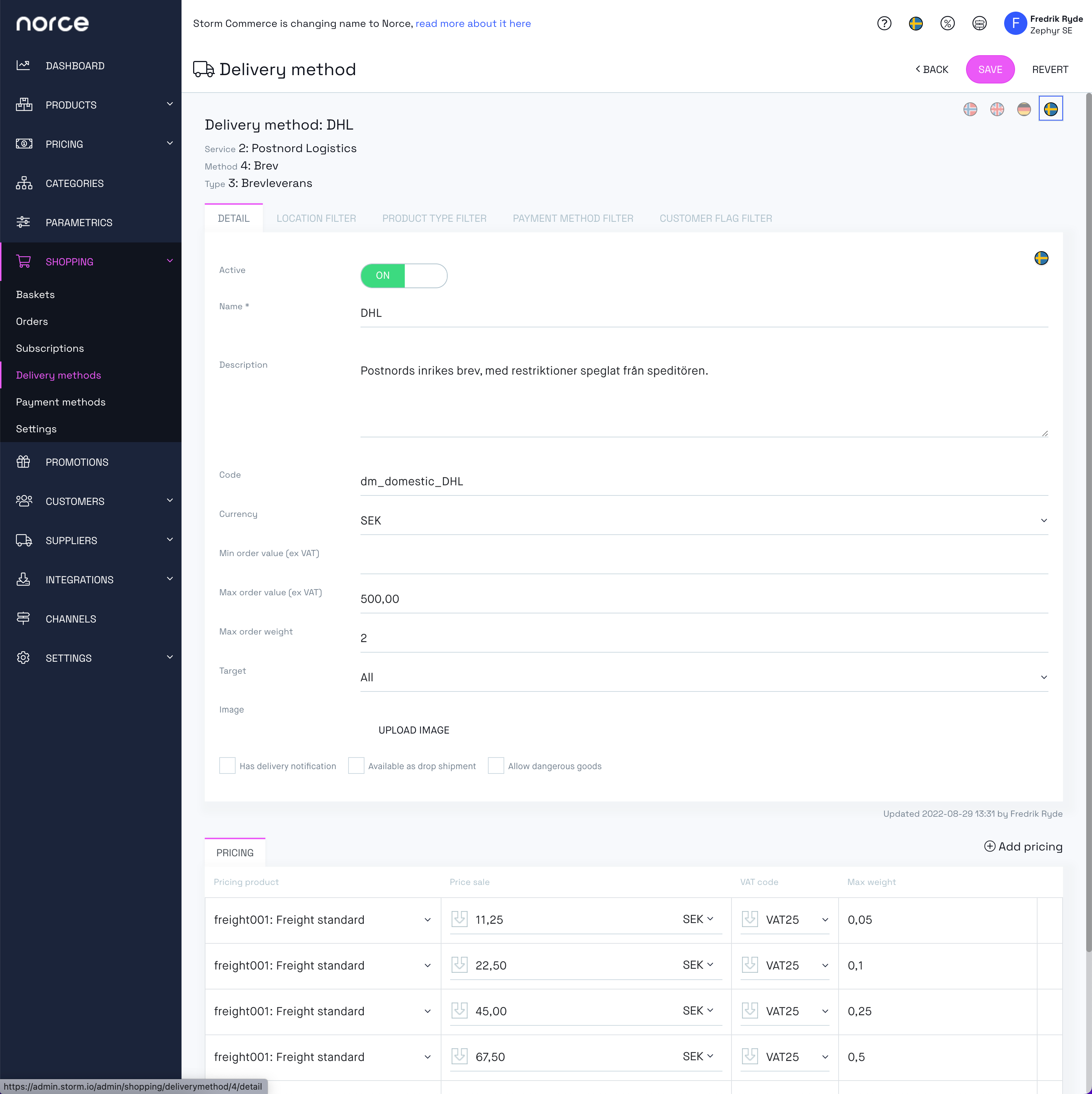
When creating a new Delivery Method at Shopping > Delivery Methods > New you first have to fill out the details and Save in order for the other tabs to appear.
| Detail | Description |
|---|---|
| Method | The carrier and the type of shipping |
| Name | Name the delivery method as it should appear i the frontend Checkout |
| Code | Code is used for marking up the order with the delivery code in the ERP system |
| Description | A short description of the Method |
| Max order value (ex VAT) | Limitation in terms of value of the order |
| Max order weight | Limitation in terms of weight of the order |
| Max volume weight | Limitation in terms of volume weight of the order |
| Target | Defines if this used for Companies, Private Individuals or All |
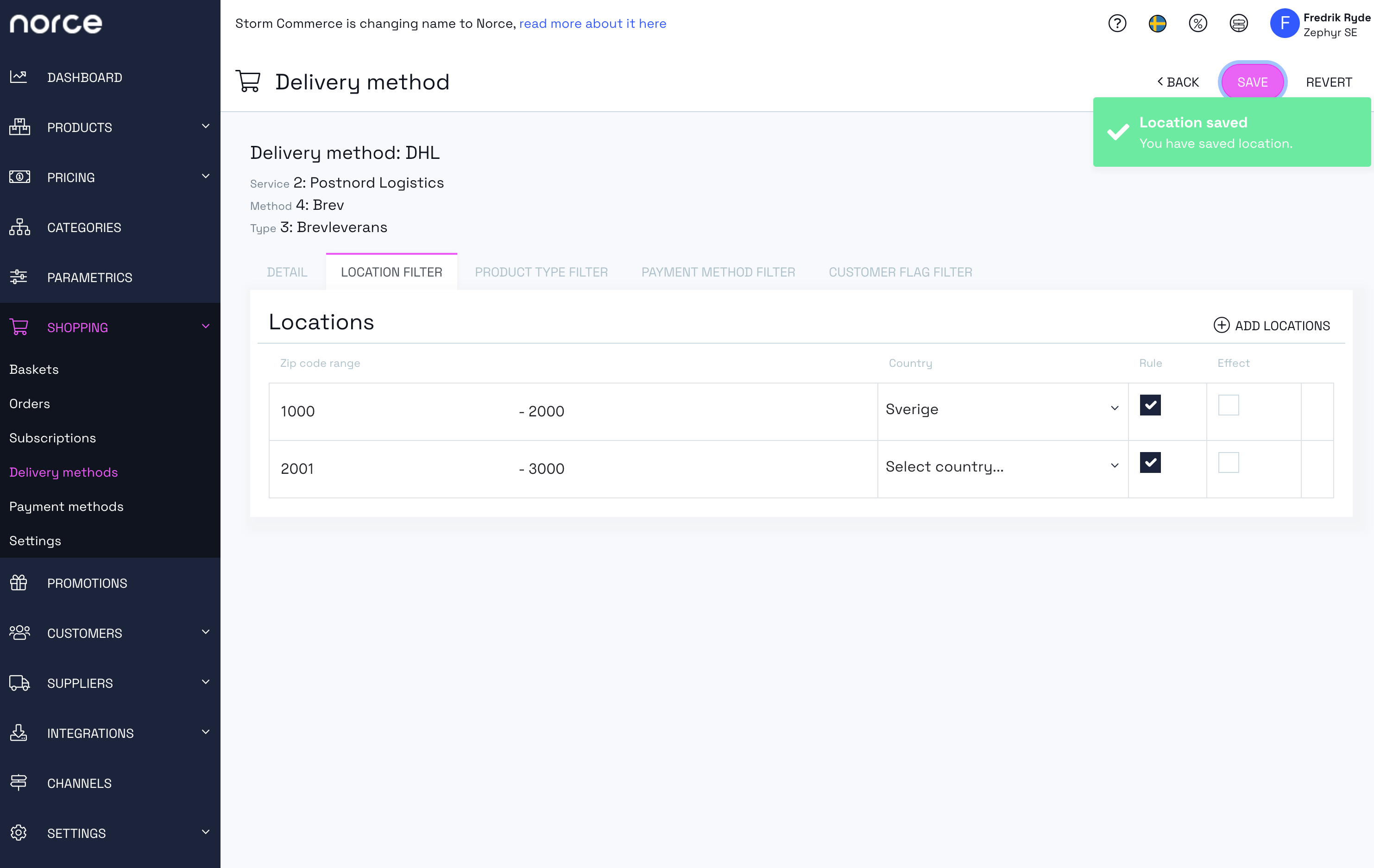
Location Filter
In the Location Filter it's possible to set a range of zip codes in various countries where the Delivery Method is valid.
Product Type Filter
Set the Product Types that are valid for the delivery method. If nothing is set all product types are allowed.
Payment Method Filter
Allows the Delivery Method only to be valid if a certain Payment Method is selected.
Customer Flag Filter
Allows the Delivery Method only to be valid if the customer has a certain flag attached to it.
Connecting a Freight Product to a Delivery Method in Norce Commerce
A Delivery Method in Norce Commerce does not carry a shipping fee by itself. The shipping fee is always taken from a freight product that you connect to the Delivery Method in the Pricing section of the Delivery Method. Creating a freight product is not enough on its own: there is no global or default freight product in Norce Commerce, so every Delivery Method that should charge for shipping needs its own connection.
Before connecting a freight product to a Delivery Method in Norce Commerce, ensure you have:
- A saved Delivery Method under Shopping > Delivery Methods (the Pricing section only appears after the Delivery Method has been saved).
- At least one product of product type Freight (see Product Types). The pricing product search in the Norce Commerce admin UI lists products of product type Freight and FreightStructure. A FreightStructure product distributes the VAT of the shipping fee across the VAT rates of the purchased items (see Shipping and VAT).
- A price and VAT code on that freight product, if you want the Delivery Method to inherit price and VAT from the product instead of setting them explicitly.
To connect the freight product to the Delivery Method:
- Go to Shopping > Delivery Methods and select the Delivery Method.
- On the Detail page, scroll to the Pricing section.
- Click Add pricing to add a pricing row.
- Click Select pricing product... in the Pricing product column, search for your freight product, and select it. Selecting the product here is what connects the freight product to the Delivery Method — there is no separate mapping screen.
- In Price sale, keep the price inherited from the freight product or enter a price for this Delivery Method.
- In VAT code, keep the VAT code inherited from the freight product or select a VAT code for this pricing row.
- In Max weight, leave the field empty if the pricing row should apply to any weight, or enter the highest package weight for which this pricing row applies.
- Save the Delivery Method. If every pricing row has a Max weight, the admin UI shows the warning "At least one pricing row has to have an unlimited max weight". The Delivery Method is still saved, but a package heavier than the highest Max weight then gets no matching pricing row.
Freight Pricing Tiers on a Norce Commerce Delivery Method
Add several pricing rows to the same Delivery Method in Norce Commerce to create pricing tiers. When a basket is priced, Norce Commerce selects the pricing row with the lowest Max weight that is still greater than or equal to the package weight. Rows without a Max weight apply to any weight but are considered last, so they are only used when no row with a Max weight qualifies. If several qualifying rows have the same Max weight, the row with the lowest price is selected. Each pricing row can point to a different freight product, so you can charge different amounts — and report different freight part numbers to your ERP — for different weight intervals.
The package weight that Norce Commerce compares with Max weight is normally the total weight of the physical items in the basket, or their volume weight if the Delivery Method uses volume weight. If Norce Commerce splits the basket into several packages for the Delivery Method, it selects a pricing row for each package and adds the shipping fees of the packages together.
What Happens If No Freight Product Is Connected
If a basket in Norce Commerce contains physical (deliverable) items and no pricing row on the Delivery Method matches the basket, the Delivery Method is marked as not valid and is not returned as an available delivery method for that basket, so it cannot be selected in the checkout. This happens when the Delivery Method has no pricing rows at all, and also when all its pricing rows have a Max weight lower than the package weight (normally the total weight of the physical items in the basket).
If a basket contains no physical items — for example a basket with only downloadable products — a Delivery Method without pricing rows can still be used, and no freight fee is added to the basket.
Troubleshooting Delivery Methods and Freight Products in Norce Commerce
Use this list when a Delivery Method is missing from the checkout in Norce Commerce, or when no freight fee is added to the basket:
- The Delivery Method is not activated, or it is not activated for the application you are calling.
- The Delivery Method has no pricing row with a freight product, or all pricing rows have a Max weight lower than the package weight (normally the total weight of the physical items in the basket). For baskets with physical items this makes the Delivery Method not valid, and it is not returned for the basket.
- The basket total is outside Min order value or Max order value on the Delivery Method.
- The basket weight, dimensions or volume exceed the corresponding limits on the Delivery Method.
- The Product Type Filter, Payment Method Filter, Location Filter or Customer Flag Filter on the Delivery Method excludes the current basket, payment method, address or customer.
- The Target setting on the Delivery Method (All, Companies, Private individuals) does not match the customer.
- The basket contains dangerous goods and the Delivery Method does not allow dangerous goods.
If the freight product referenced by a pricing row is missing or has the wrong product type, Norce Commerce returns an error when the basket is priced:
Error: "The freight article, {partNo}, on delivery method {id} does not exist."
The pricing row on the Delivery Method points to a part number that cannot be found for the application. Verify in Shopping > Delivery Methods that the pricing row points to an existing, active freight product.
Error: "The freight article, {partNo}, on delivery method {id} has wrong type. It should be a freight article."
The product used for the shipping fee is not of product type Freight. Connect a product of type Freight to the pricing row. If the pricing row points to a FreightStructure product, every product on the Structure tab of that FreightStructure product must be of product type Freight (see Shipping and VAT).